My Pixel Watch now shows my stress level like a mood ring—and I built it in minutes

Joe loves all things technology and is also an avid DIYer and food blogger. He has written thousands of articles, hundreds of tutorials, and dozens of reviews.
Before joining How-To Geek, Joe worked at XDA-Developers as Managing Editor and covered news from the Google ecosystem. He got his start in the industry covering Windows Phone on a small blog, and later moved to Phandroid where he covered Android news, reviewed devices, wrote tutorials, created YouTube videos, and hosted a podcast.
From smartphones to Bluetooth earbuds to Z-Wave switches, Joe is interested in all kinds of technology. After several years of jailbreaking and heavily modifying an iPod Touch, he moved on to his first smartphone, the HTC DROID Eris. He's been hooked ever since.
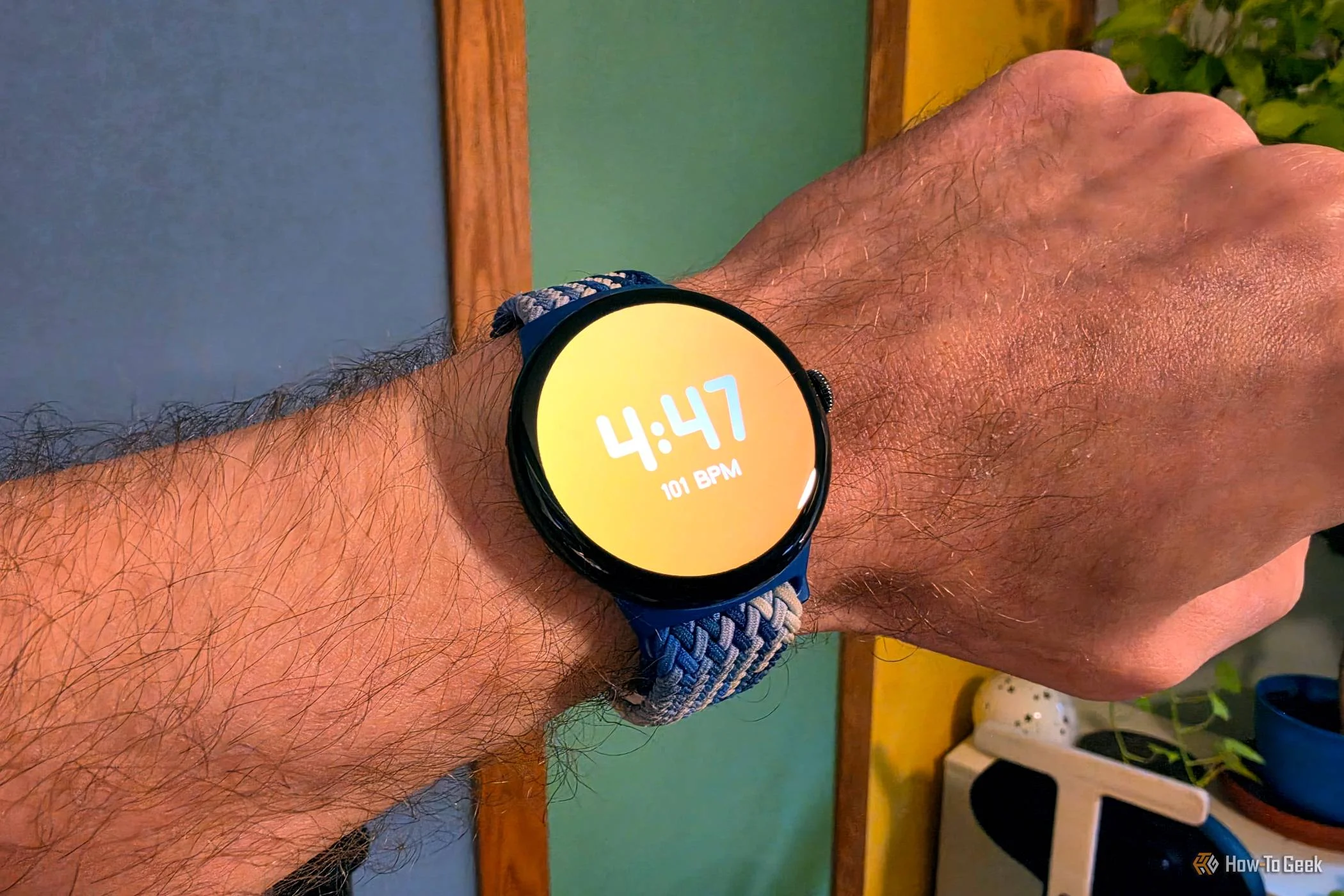
Stress is something that's easy to feel, but not necessarily as easy to see. That's part of the utility of wearing a smartwatch like the Pixel Watch—you can see many of your vitals right on your wrist. Numbers are cool, but what if your watch face were a mood ring?
Originally introduced in the '70s, mood rings had a big moment back in the Y2K era. They contained "stones" made with a thermosensitive compound that changed color based on temperature. Typically, higher skin temperatures would result in "stressed" colors such as red or purple, while cooler temperatures meant "calm" greens and blues.
While those cheap mood rings had no way of detecting your actual mood, a smartwatch has sensors that allow for real body measurements. I decided to take that idea into Android Studio and use Gemini to create a new face for my Pixel Watch.
Building custom watch faces is super easy now
You can do it too, I promise
One of the most significant updates for the Android platform this year did not arrive on phones. It was back in May, when Google added Gemini to Android Studio. Vibe coding Android apps was possible before, but now there’s an AI agent built right in and waiting to follow your every command.
Now, I’ve been playing around with this a lot. I’ve made a silly watch face, a simple markdown editor, and my biggest project, a webOS-inspired home screen launcher. As someone who has loved designing but always been intimidated by coding, it’s opened me up to a world of possibilities. The barrier to building my own experiences is no longer there.
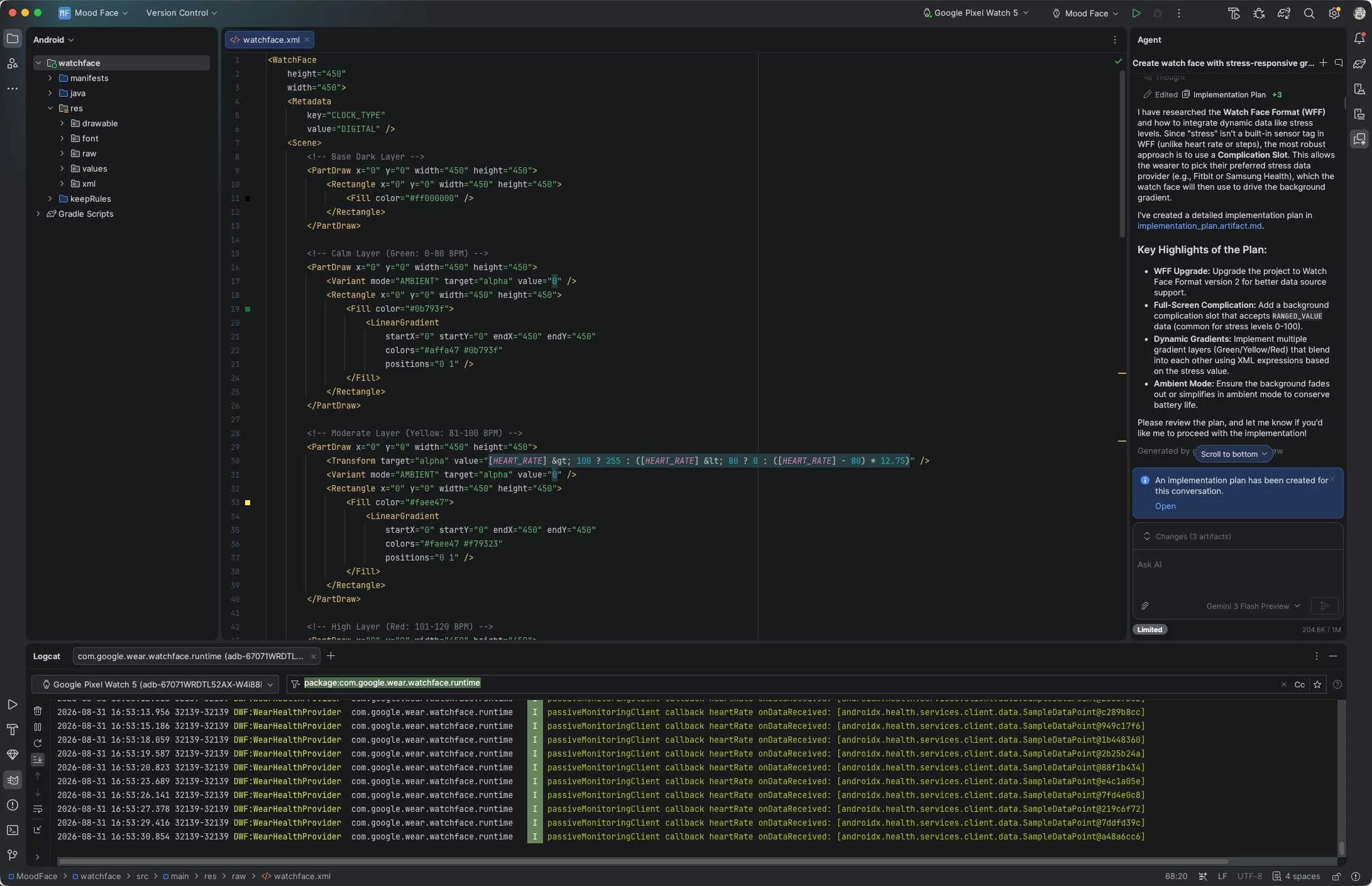
Back to the mood ring watch face. Depending on your smartwatch and health apps, there are a few different watch complications that could be used to measure “stress.” You might have a literal “Stress” complication, but the one that pretty much every device has is basic heart rate measurements. That’s what I decided to use for my watch face.
In all honesty, the build process was pretty simple. After creating a new watch face project in Android Studio, my first prompt was:
I would like to create a watch face with a gradient color background that translates to the wearer's stress level.
The first iteration had a full-screen background complication, a clock, and the text “Hello, world!” Gemini created three zones with different colors, each associated with a percentage of whichever complication the user chose. As the percentage changed, the face faded between the colors. It was a good place to start.
Fine-tuning and learning along the way
It’s not a completely hands-off process, but that’s okay
My next steps were to replace “Hello, world!” with the current heart rate reading. I also wanted to use a custom font for the text on screen, so I uploaded the OTF file to the folder that Gemini instructed me to use. I also thought it would be cool to have a little icon to show if your heart rate was trending up or down, but Gemini told me watch faces aren’t allowed to read data from a complication (a good feature).
This is when I noticed the colors weren’t really changing how I’d like. Gemini’s original approach didn’t work. Instead, I asked it to create four zones with specific BPM ranges. It took a couple of tries, but eventually it was working as I envisioned.


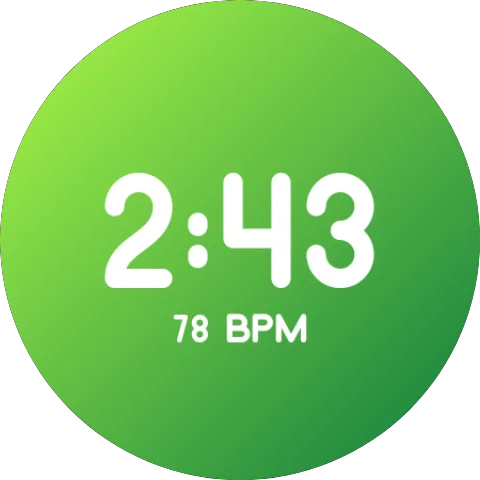
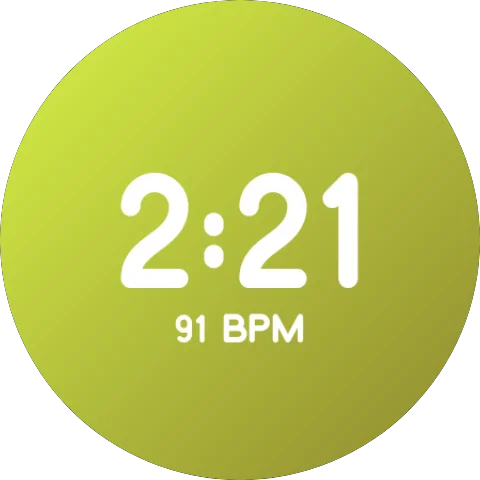
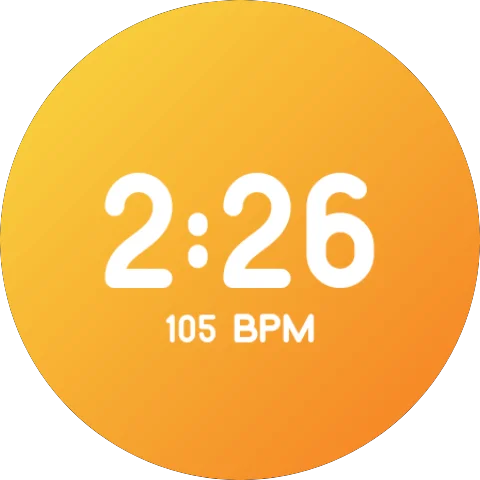
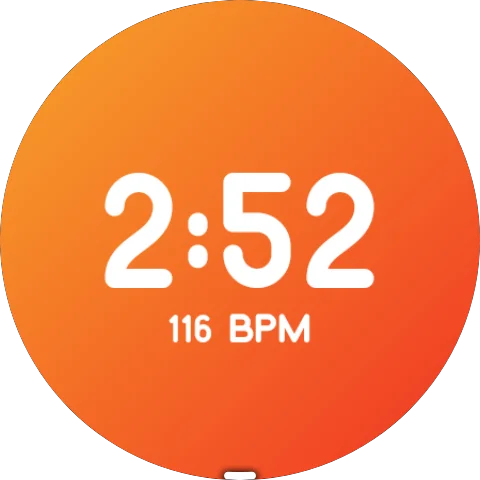
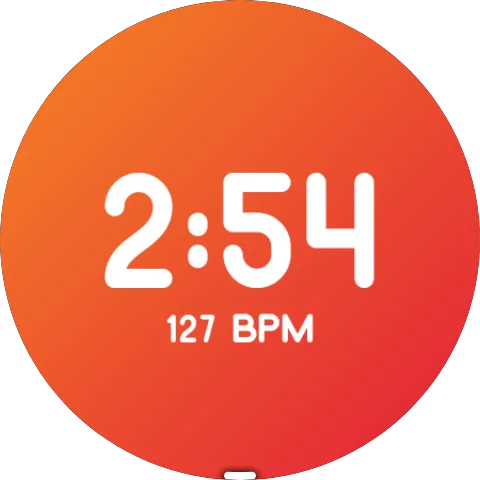
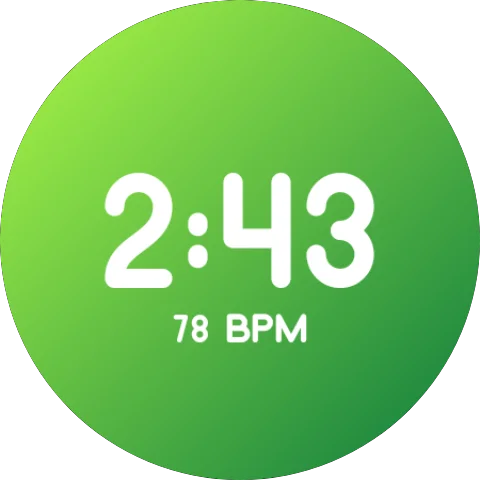
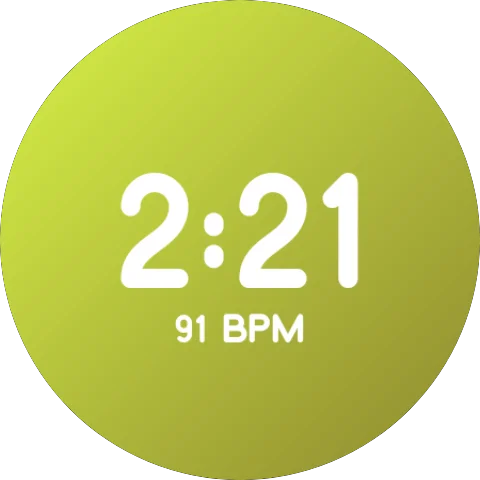
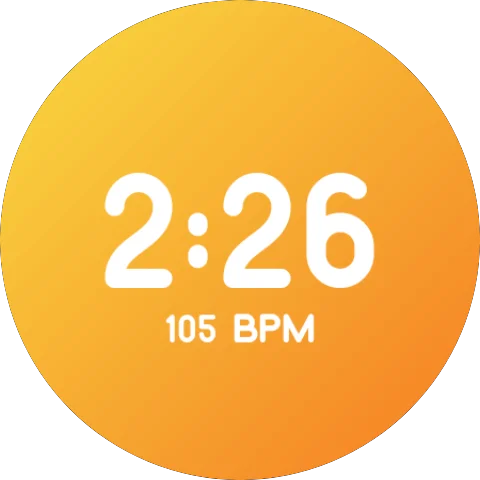
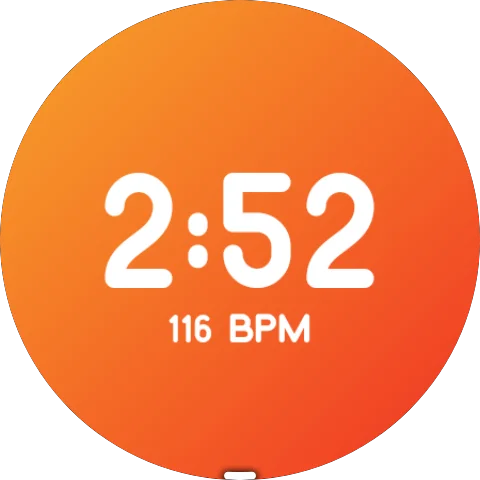
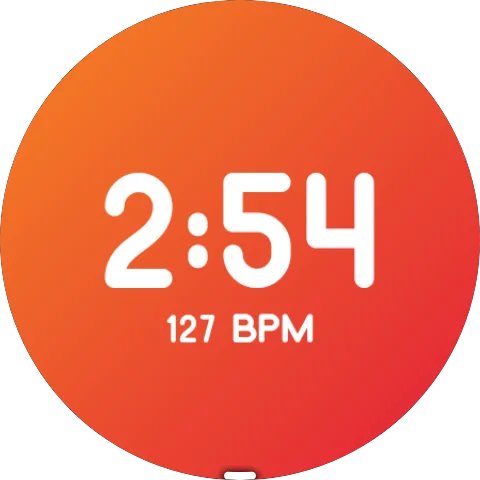
Now, using Gemini to do your bidding is cool, but it’s also a great way to learn. Watching the code change in front of my eyes allows me to see how the sausage is made. While my font was being added, I was able to identify the section responsible for the text on the screen. This gave me the confidence to make some changes on my own. I increased the clock size and moved it higher up on the screen.
All in all, it’s a very simple watch face, but it does exactly what I wanted. I can quickly glance at my Pixel Watch to judge my stress level. Sure, the heart rate reading alone could accomplish this on any watch face, but the gradient colors are more effective. If you have a random idea for an Android app or watch face, you should make it!